How to create an iCloud app-specific password for calendar apps
An app-specific password is a one-off password that Apple generates so a calendar app can use your iCloud calendars without your Apple Account password. You make it at account.apple.com, under Sign-In and Security, App-Specific Passwords, and it takes about a minute. Your Apple Account needs two-factor authentication first, or Apple does not offer the option.
2 min read
Create the password
These are the steps from Apple's support page, which is the source if the screens change.
- Sign in at account.apple.com with your Apple Account.
- In the Sign-In and Security section, select App-Specific Passwords.
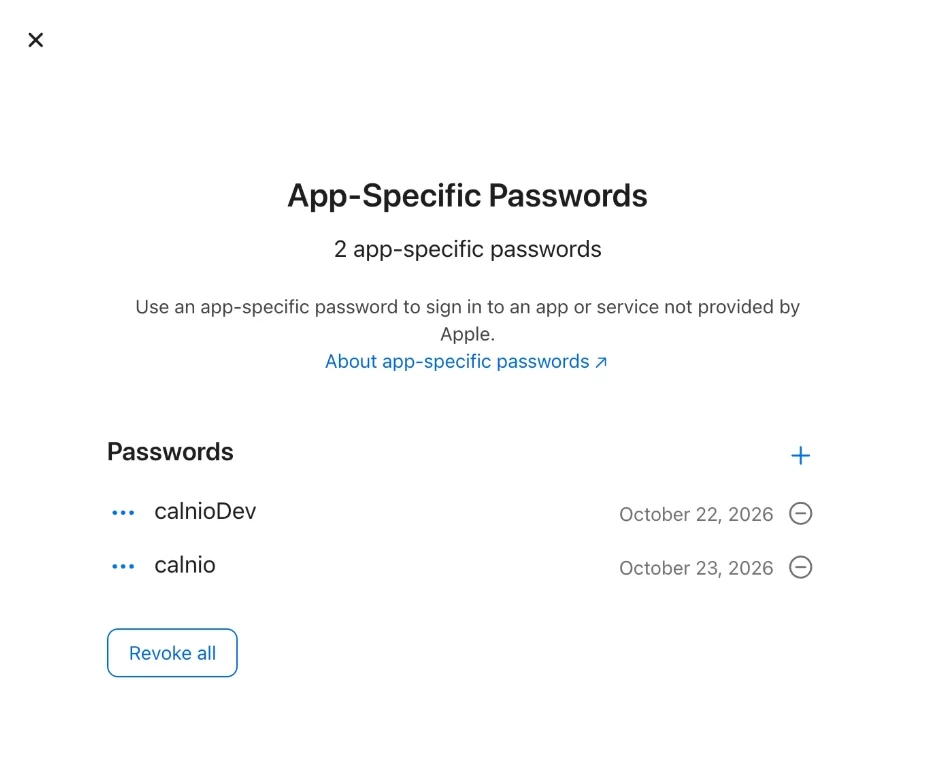
The App-Specific Passwords window at account.apple.com. The plus button next to Passwords adds one, and Revoke all removes every password at once. - Select Generate an app-specific password, or the plus button next to Passwords if you already have some.
- Type a name for the app that will use it, for example Calnio, and select Create.
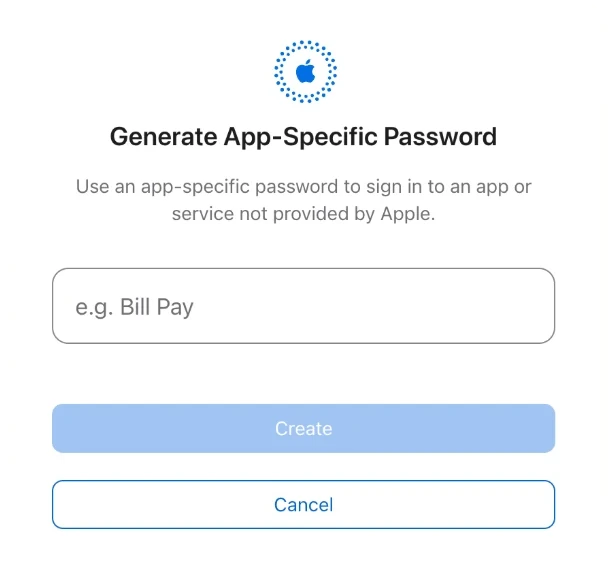
Apple asks for a name, such as Calnio, then shows the password once you select Create. - Copy the password Apple shows. It has four groups of four letters, like xxxx-xxxx-xxxx-xxxx.
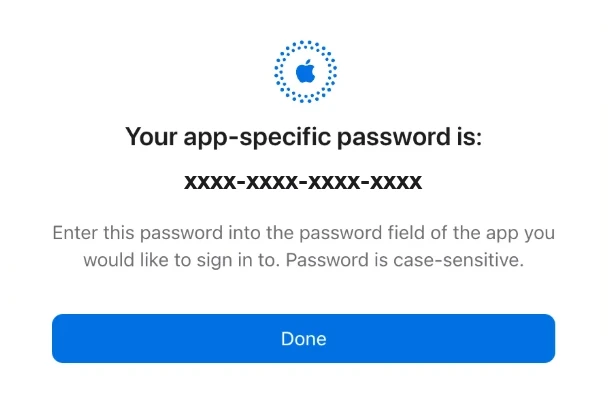
Copy the password before you select Done. The one in this picture is hidden, and yours will be four groups of four letters.
If you do not see App-Specific Passwords
Apple says your Apple Account must be protected with two-factor authentication before you can make one. If the option is missing, turn two-factor authentication on first, then come back to the steps above.
Put it into the app
Paste the password where the app asks for your iCloud password, together with your Apple Account email. Never paste your Apple Account password there. Apple requires an app-specific password for Notion Calendar as well, so the same steps work for it.
In Calnio, the Apple Calendar step takes your Apple Account email and the password. Calnio stores that password encrypted, and it is the app-specific one only. Disconnecting Apple Calendar in Calnio removes it from Calnio, and removing it at Apple stops it working everywhere.
Limits and what revokes it
You can have up to 25 active app-specific passwords. To remove one, sign in at account.apple.com, open App-Specific Passwords, and select Remove next to it, or Revoke All. The app using a revoked password is signed out until you give it a new one.
Changing or resetting your Apple Account password revokes all your app-specific passwords at once. A sync that worked yesterday and stops after a password change has hit this. Make a new password and reconnect.
If the app says the password was refused
Check the password first. Copy it exactly as Apple shows it. Several wrong tries in a row can make Apple refuse every sign-in for a while, even a correct one, so if a try fails, check before you try again.
Calnio does not give up at the first refusal, because Apple sometimes refuses a good password for a few minutes. After at least three refused checks over at least 30 minutes, it pauses your syncs and shows a reconnect banner on every dashboard page. Reconnect with a new password and the syncs resume.